
Search terms and n-grams
See what shoppers typed on Amazon before seeing your ads, find the words that cost without selling, and add them as negatives in two clicks.
Search terms shows what shoppers typed on Amazon before they saw your ads, with what each search cost and sold. It also cuts every search into its words, so you see which words cost money without ever selling.
What this page shows
Open Search terms in the menu on the left: it shows the whole marketplace. To see only some campaigns' searches, tick them on Campaigns and click Search terms in the bar that appears.
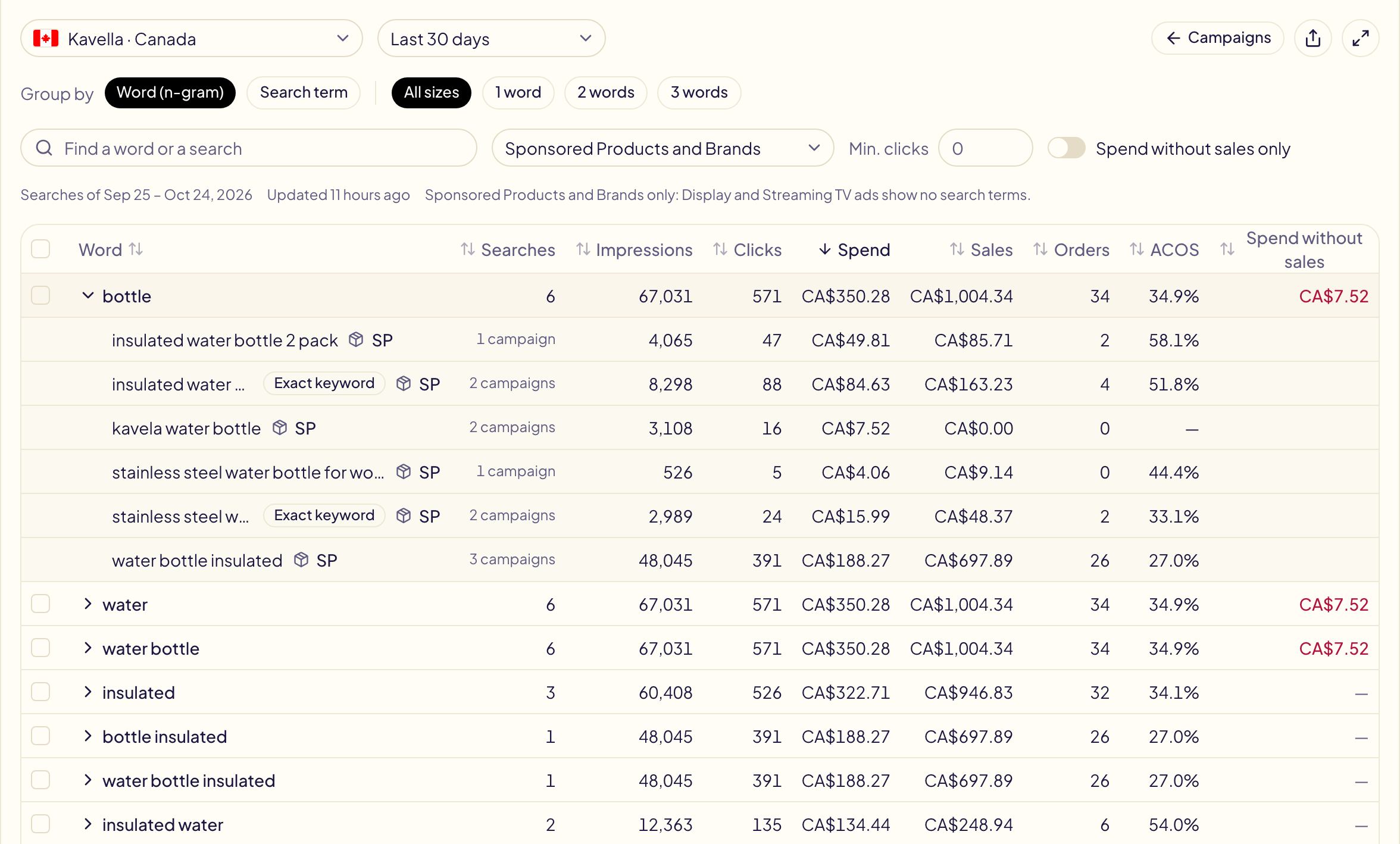
- One marketplace at a time: amounts are in its own currency.
- Sponsored Products and Sponsored Brands only. Display and Streaming TV ads are not shown on searches, so Amazon gives no search terms for them.
- Exact keyword next to a search: it is already an exact keyword in one of the ad groups that showed it. ASIN: the shopper landed from a product page.
- Click a search's number of campaigns (« 9 campaigns ») to see them, with that search's spend, clicks, sales and ACOS in each. A campaign's name opens it in the Amazon Ads console.
Words, pairs and triplets (n-grams)
Group by: Word cuts each search into words, pairs of words and triplets (they are called n-grams), then adds up every search that contains the same piece.
| Search | Spend | Sales |
|---|---|---|
| red dragon book | $12 | $0 |
| red dragon coloring | $9 | $0 |
| dragon book for kids | $8 | $15 |
Searched one by one, nothing stands out. As words, red cost $21 in 2 searches without a sale, while dragon sold.
- The arrow before a word opens the searches that contain it.
- 1 word, 2 words, 3 words show one size only. A longer piece is almost always one search: you find it with Group by: Search term.
- A search counts once in a word, even when the word appears twice in it.
Find the words that cost without selling
- Spend without sales (last column) is what the searches that never sold cost. Sort on it with a click on its title.
- Spend without sales only keeps the rows that cost and never sold.
- Min. clicks hides the rows with too few clicks to judge.
Add negatives in two clicks
Tick the rows, then Add as negative:
- a word becomes a phrase negative: every future search that contains it is blocked, not only those already seen;
- a whole search becomes an exact negative.
Add negatives opens filled with the words, the marketplace and the ad groups where those searches appeared. Its preview shows every line before anything is sent to Amazon.
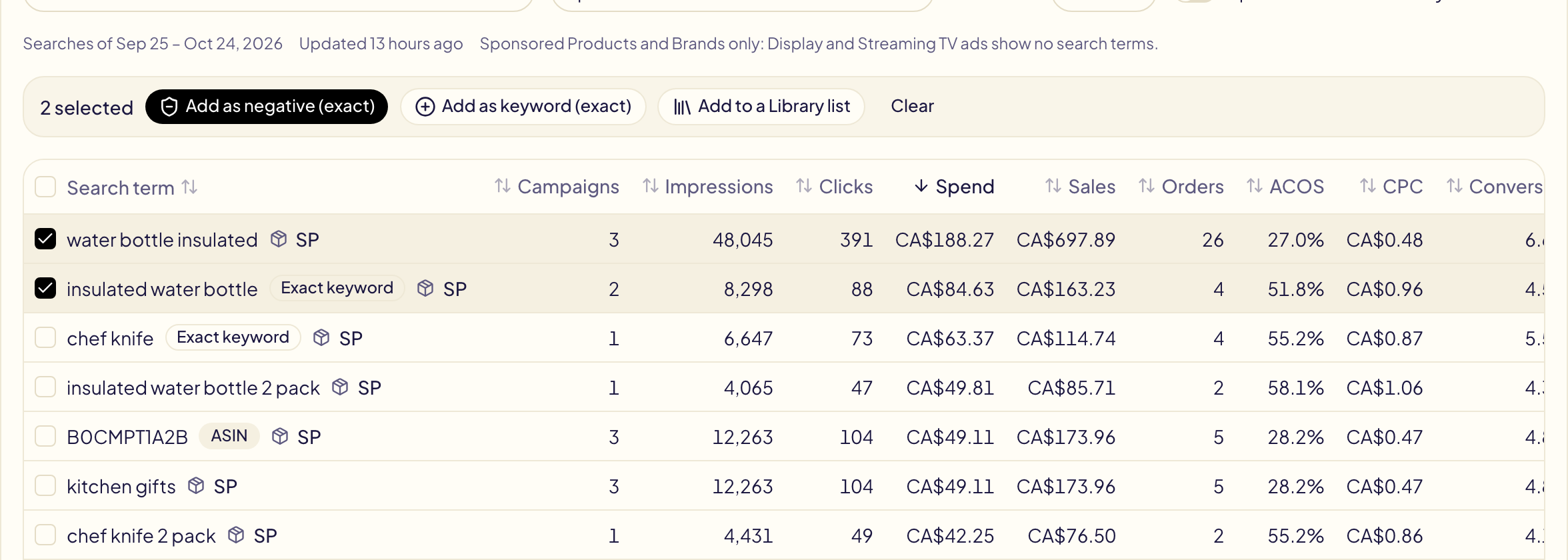
Add as keyword does the opposite for a search that sells: it opens Add targets filled the same way (a search as an exact keyword, a word as a phrase keyword, an ASIN search as an ASIN target), where you add a bid.
A row with a lock cannot be ticked: it holds a word of your never negate list, such as your brand.
Add to a Library list opens a new list of your Library, filled with the ticked words: name it and save it.
The period
| Choice | What it costs |
|---|---|
| Last 30 days (default) | Ready at once: it is the same Amazon report as your rules and the Products page. |
| Last 90 days, Last 12 months, All time (up to 6 years) | Asked from Amazon the first time you pick it each day: a few minutes, up to an hour for all time. |
All time goes back to your first ads, 6 years at most: that is what Amazon keeps.
While Amazon prepares a period, click Notify me when ready on the message and leave the page: the Notifications page tells you when the searches are there, or if Amazon could not prepare them.
The figures are updated once a day while you open the page. A very large period lists only the searches that cost the most, and the page says so.
The dashboard's Wasted spend card shows the words that cost the most over 30 days, in its Search words tab.