
Keyword & ASIN Finder
Find the searches shoppers type on Amazon and the products Amazon shows for them, then save them as a Library list or add them to your ad groups.
Keyword & ASIN Finder has two tabs. Keywords lists the searches shoppers really type on Amazon. ASINs lists the products Amazon shows for those searches, organic or sponsored. Both go straight into your campaigns.
Where the keywords come from
From Amazon's search bar: the list that drops down while a shopper types, the most searched first. The keywords are collected live when you search, never from a list built in advance, so they are as fresh as Amazon's own suggestions.
| What you tick | What the tool types after « yoga mat » |
|---|---|
| Letters A to Z (on by default) | yoga mat a, yoga mat b … in your keyword's alphabet |
| Digits 0 to 9 | yoga mat 0 … yoga mat 9 |
| Questions | how to yoga mat, which yoga mat… in your keyword's language |
| Prepositions | yoga mat for, yoga mat with, best yoga mat… |
Put a * where the letters go: « best * for dogs » types « best a for dogs »,
« best b for dogs »…
Run a keyword search
- Open Keyword & ASIN Finder in the menu on the left, tab Keywords.
- Type your keywords, one per line (50 at most).
- Pick the marketplace in the list: type its name or its storefront (« amazon.de ») to find it. Your account's marketplaces come first, the 23 Amazon Ads marketplaces are all there. A search runs on one marketplace: to compare another, pick it and search again.
- Tick what to type after each keyword, then click Search Amazon.
Amazon suggests in the language you type. Where shoppers type in two languages (the United States, Canada, Belgium), Language of your keywords says which one yours are in, so the letters, questions and prepositions match it. Arabic, Hindi, Japanese and Chinese keywords are recognised by themselves.
Under the button, the tool says how many searches it will send to Amazon. A new search adds its keywords to the results already there. A keyword already searched on the same marketplace with the same options, whose keywords are all still there, is skipped. Clear under the keywords empties them; Clear above the results empties the results. One never touches the other.
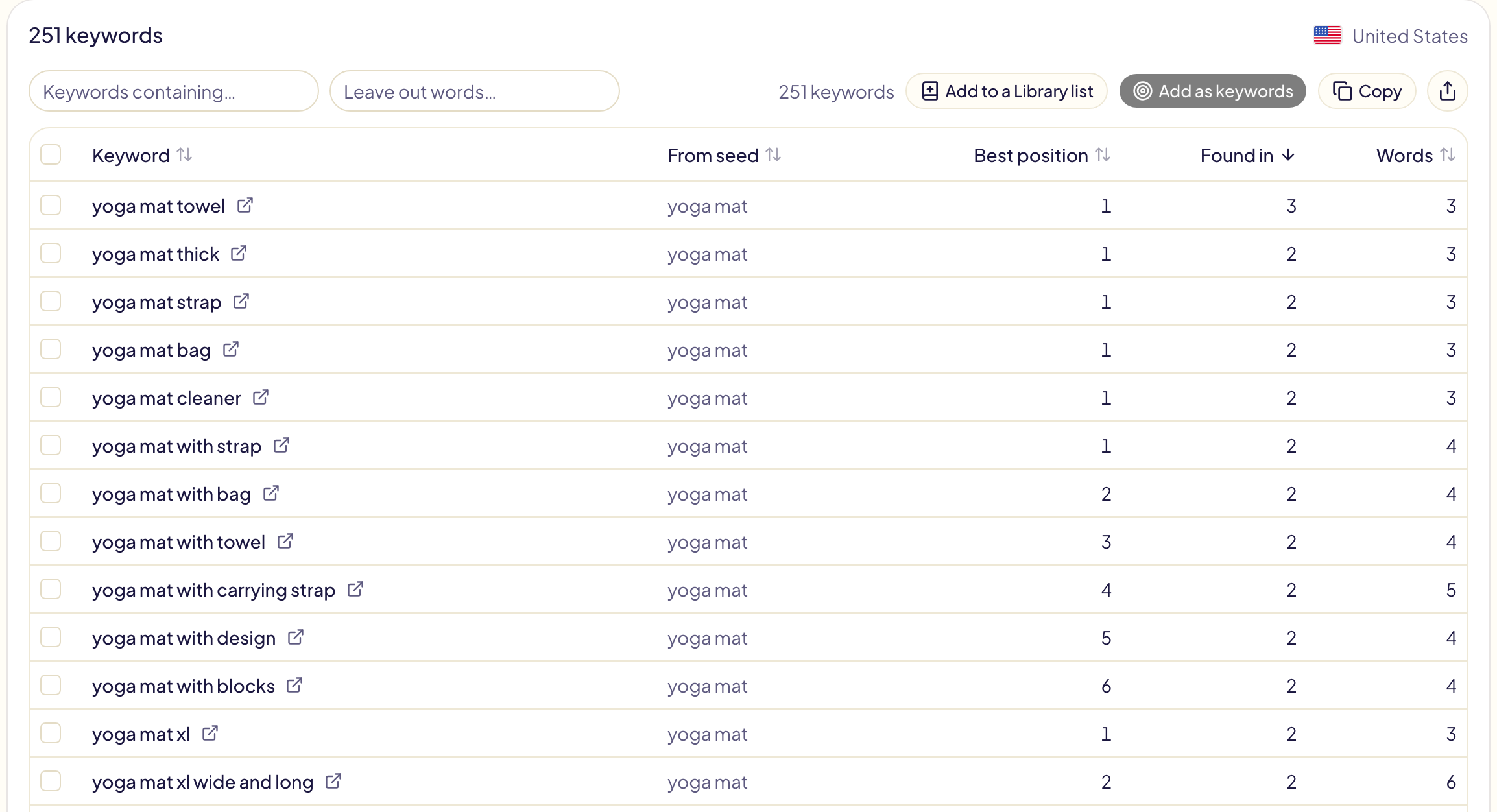
Read the keyword results
| Column | What it means |
|---|---|
| Keyword | A search Amazon suggests. The arrow next to it opens it on Amazon. |
| From seed | The searches typed that brought it up: « yoga mat a », « yoga mat b »… |
| Best position | Its best place in Amazon's list, 1 being the first. Amazon puts the most searched first. |
| Found in | How many of the tool's searches brought it up. High = shoppers reach it in many ways. |
| Words | One or two words is a broad search; four or more is the long tail, cheaper and closer to a purchase. |
Click a column's name to sort by it. Keywords containing… keeps only the keywords with those words; Leave out words… removes them.
Use the keywords
Tick keywords (press a box and drag over the rows to tick many), or tick none to use every keyword the filters keep. Then:
| Button | What it does |
|---|---|
| Find their ASINs | Sends them (50 at most) to the ASINs tab, to list the products Amazon shows for each one. |
| Add to a Library list | Opens a new keyword list in the Library, named after your keyword, in the marketplace's language. You save it there. |
| Add as keywords | Opens Add targets on Sponsored Products with these keywords as exact keywords: you pick the ad groups and approve. |
| Remove | Takes the ticked keywords out of the results. |
| Copy | Copies the keywords, one per line. |
| Export | Downloads them as CSV or Excel, the marketplace included. |
Add as keywords is greyed out when the advertiser picked in the menu has no profile on the marketplace of the results.
Limits
- Searches per hour: 5,400 Amazon searches an hour, about 200 keywords with the letters A to Z. With the free Gloriads extension for Chrome installed and on, there is no limit. The tool finds the extension by itself.
- No search volume: Amazon's search bar gives none, so the tool shows none. The real figures come once your ads run, on Search terms.
- The keyword tool is free and public, without an account, at gloriads.com/free-tools/amazon-keyword-tool, with a lower limit.
Find the ASINs of your keywords
The ASINs tab needs the free Gloriads extension for Chrome: it reads Amazon's results pages from your own browser. Without it, the tab offers the install.
- Type your keywords, one per line (50 at most), or click Find their ASINs in the Keywords tab.
- Pick the marketplace and the result pages per keyword, 1 to 5. A page holds about 48 products.
- Click Find ASINs.
The extension reads the pages in the background, without opening anything, at a shopper's pace: seconds between pages, longer between keywords, a short break now and then. Under the button, the tool says how long it will take: about 9 minutes for 10 keywords of 2 pages. You can work in another tab meanwhile, and Stop ends it.
If Amazon wants to check the browser, the search stops at once and says so. Open the storefront in a tab (solve the check if it shows one), then click Find ASINs again: the keywords already read are skipped.
| Column | What it means |
|---|---|
| Product | Its title, its ASIN, and an arrow that opens it on Amazon. |
| Placement | Organic, Sponsored, or both, from Amazon's own markers on the page. Sponsored carousels count as sponsored. |
| Best position | Its best organic place on your searches, page 2 continuing page 1. Empty for a product seen only in paid slots. |
| Found in | How many of your keywords show it. High = your closest competitor. Amazon page = sent from the extension's panel. |
Pick ASINs on Amazon
With the extension, every Amazon results page and best-seller list shows the Gloriads ASIN Finder panel at the bottom right.
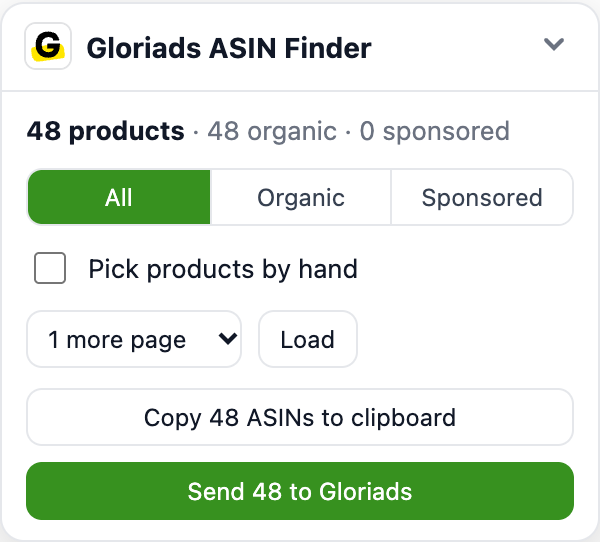
- Each product shows its ASIN in a box under its image: click it to copy that ASIN.
- All / Organic / Sponsored chooses which products the buttons use.
- Pick products by hand puts a box on each product: click to pick it, Shift + click to pick a range. Clicking picks; it never opens the product.
- Load adds the next 1 to 4 pages under the ones you see, your filters and sort kept, a few seconds apart.
- Copy puts the ASINs on your clipboard, one per line.
- Send to Gloriads adds them to the ASINs tab, even if it is already open in another tab. Signed out of Gloriads, it is grey: sign in, or try Gloriads free, from the links under it. Copy works without an account.
On a best-seller list, the panel takes the 50 ranks of the page at once, and links the next page for ranks 51 to 100.
Drag the panel by its header to move it out of the way; double-click the header to put it back. The extension's popup (its icon in Chrome's toolbar) turns the panel off or on with Free ASINs tool, and Put the panel back at the bottom right brings back a panel moved out of sight.
The extension never clicks an ad by itself: picking never opens a product, and the pages it loads are shown without their ad links, so no advertiser pays for a click because of it.
Use the ASINs
Tick products, or tick none to use every product the filters keep. Then:
| Button | What it does |
|---|---|
| Add to a Library list | Opens a new ASIN list in the Library. You save it there. |
| Add as product targets | Opens Add targets on Sponsored Products with these ASINs: you pick the ad groups and approve. |
| Remove | Takes the ticked products out of the results. |
| Copy ASINs | Copies the ASINs, one per line: the format of Amazon Ads' « Enter list » box. |
| Export | Downloads them as CSV or Excel, with the keywords that found each one. |
The extension's ASIN grabber is presented, without an account, at gloriads.com/free-tools/amazon-asin-grabber.